Home › Transfer to PC & iPhone
Wi-Fi file transfer
Move files from Android to your PC, Mac or iPhone. No cable.
Glenzo File Manager shares your phone's files over Wi-Fi. Scan a QR code or type the address it shows into any web browser, then drag and drop files in either direction. Nothing to install on the computer.
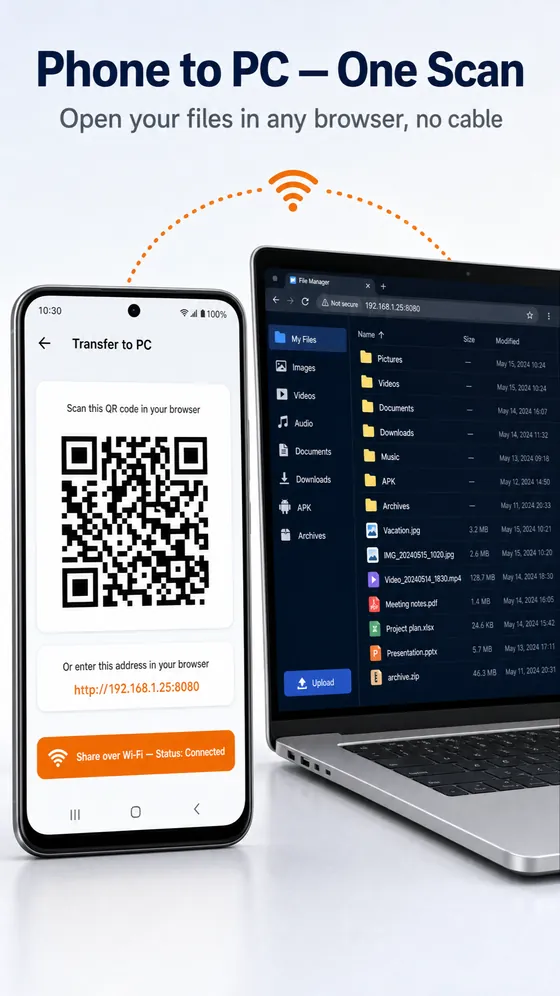
Share with any device
- Works with Windows, macOS, Linux, iPhone and Android
- Connect by scanning a QR code or typing the address shown
- Drag and drop to upload, click to download
- Share files and folders with several devices at the same time
- Share only what you choose, without exposing the rest of your storage
- Files move over your own Wi-Fi network, not through a cloud server
How to transfer files from Android to PC over Wi-Fi
- Connect your phone and computer to the same Wi-Fi network.
- In Glenzo File Manager, open Transfer to PC.
- On the computer, scan the QR code or type the address shown (it looks like http://192.168.1.25:8080) into any browser.
- Drag files into the browser window to send them to your phone, or click files to download them to the computer.
Why use Wi-Fi instead of a USB cable?
USB transfer needs the right cable, a driver on Windows and an extra app on a Mac. Glenzo's transfer only needs a web browser, so it works the same on Windows, macOS, Linux and Chromebooks, and on phones too.
Sending files to an iPhone
Android and iPhone can't use the same built-in sharing, which is why moving photos between them is usually painful. With Glenzo, the iPhone just scans the QR code with its camera and opens the link, and the files download in the browser. You can also share with several phones and computers at once, which is handy for trips and family photos.
Is it private?
The transfer runs on your phone and your local Wi-Fi network, so files don't pass through a cloud server. You pick which files and folders to share, and the rest of your storage stays hidden. Stop sharing when you're done.
Need files from the cloud as well? Glenzo also connects Google Drive, Dropbox, OneDrive and more.
Frequently asked questions
Do I need to install anything on my computer?
No. The computer only needs a web browser. Scan the QR code or type the address Glenzo shows.
Does it work with Mac and Linux?
Yes. Any computer with a web browser works, including Windows, macOS and Linux.
Can I send files from Android to an iPhone?
Yes. Scan the QR code with the iPhone's camera, open the link and download the files in the browser.
Do both devices need to be on the same Wi-Fi?
Yes. The phone and the other device must be on the same Wi-Fi network.
Can I send whole folders?
Yes. You can share files and folders, and share with several devices at the same time.

Get Glenzo File Manager today.
Free on Google Play. Under 10 MB. Everything you need to find, open, lock, clean and share your files.
Download on Google Play